Seam and loop tools
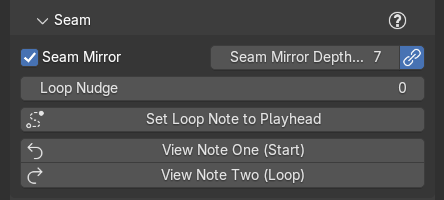
These controls work on the loop itself: when the loop note sounds, how you look at the seam, and the ghost keys that hide it. They live in the Seam section (directly under Tracks in Marble Studio Pro, under Course Editor in Marble Studio Free): Seam Mirror, Loop Nudge, Set Loop Note to Playhead, and View Loop Note One / Two. Rotate Key stays in the Course Editor, with the other key tools. If the ideas are new, read The perfect loop first.
Most songs never need these. Reach for them when the loop restarts too soon after the last note, when you want to check both sides of the cut, or when the camera sees empty space where a key should be.
Loop Nudge
Loop Nudge slides the silent loop note later (+) or earlier (−) in time, from −600 to +600 frames. The song's notes stay on their beats; only the closing flight, from the last note to the loop note, gets longer or shorter, and the loop stays closed.
A nudge lands exactly. When you let go of the slider (or type a value), the course moves the loop note to exactly that frame. How it gets there depends on whether you have turned any keys yet:
- On a course you have not edited, note 1's bounce is re-aimed, and up to twelve keys after it ease into the new path, while the key after them turns in place. Everything after that is untouched.
- Once you have turned note 1 or any other key, the nudge is one more edit, like turning a key: note 1 keeps the angle it shows (yours, if you set it), and the keys after it move on their own frames until the course rejoins at two keys you have not touched. Nothing past them moves.
One Ctrl+Z takes a nudge back, typed or dragged: the course and the slider return to where they were before you touched it. The Loop row in Course Check shows what happened, its short title first:
- Landed +12: "Loop Nudge +12 landed: note 1 re-aimed (Bounce 0.62) and leaves at 6.1 m/s, 1.2x this course's fastest bounce; keys 2-9 eased, key 10 re-angled in place." On a course you have edited it reads "Loop Nudge +12 landed as an edit of the course: note 1 as you set it (Bounce 0.70, 12.0 deg); ... Dragging the slider back to 0 keeps this course; Ctrl+Z returns to before.", where the middle names what moved: "keys 2-8 moved on their own frames, keys 8-9 re-angled; nothing past them moved", "keys 2-3 re-angled; nothing past them moved", or, when no two untouched keys can take the change, "keys 2-40 moved (no pair could rejoin on this course)" (and the Ripple moved keys row says the whole course followed). It says "note 1 as it shows" when you turned other keys but not note 1. If the course already sits at the value you ask for (Esc on a drag, or the same number typed again), it reads "Loop Nudge +12 is part of the course (note 1 as you set it, Bounce 0.70, 12.0 deg). Dragging the slider back to 0 keeps this course; Ctrl+Z returns to before."
- Landing +12... while you drag: "Landing +12... (settling): the course lands when the slider is released."
- Re-solve to land when nothing re-solves on its own (Live Update is off, or the frame rate does not match the course): "The slider asks +12; the course still sits at +0 because nothing re-solves right now (Live Update is off, or the frame rate does not match the course). Press Re-solve Course, or turn Live Update on, to land it."
- Asks +12, sits +0 when the slider moved since the last landing: "The slider asks +12; the course sits at +0. Move the slider or press Re-solve Course to land." (with Live Update off: "The slider asks +12; the course sits at +0. Press Re-solve Course to land (Live Update is off, or the frame rate does not match the course)."). A file saved by an older version can show its old wording until the next re-solve ("Nudge asks +12, course sits at +0: drag the slider to re-land." or "Sits at +0 (asked +12): drag the slider to re-land.").
Re-solve Course lands the slider's value too, when the slider moved since the last landing. If it cannot, its report says why with the same words as the row: "Loop Nudge +0 refused: Cannot land +0: ...".
Editing after a landing. A landing is part of the course. If you then change one of the keys it moved, the row says so and keeps your edit:
- +12 kept: key 5: "You changed key 5, which the Loop Nudge had moved, so the +12 landing is now part of the course: the course stays at +12 and key 5 stays where you put it. Dragging the slider back to 0 keeps your edit. Ctrl+Z undoes your change to key 5; a new nudge past note 1's own range needs that first, or nudge first, then shape keys 2-13." (It starts "You locked key 5 by hand" when you locked it instead, or reads just "The +12 landing is now part of the course.")
- Sits +8: key 5: "Key 5 is yours, so the Loop Nudge's fade cannot move it and the landing at +12 no longer fits before it. The course sits at +8 for now, the nearest loop length that closes without moving key 5. Ctrl+Z (undo your change to key 5) brings +12 back." The first words say why the key stays ("is yours", "is locked by hand", "is named by the generator's line", or "has a track before it"), and the last sentence names what frees it: "Unlock key 5's rotation and touch the slider, or press Ctrl+Z, to bring +12 back." for a key you locked, or "Remove that track, or press Ctrl+Z, to bring +12 back." for a key after a track, or "Ctrl+Z brings +12 back." for a key the generator named.
-
Sits +8 this edit: "Sits at +8 this edit (landed +12): this edit leaves no clean landing at +12, so the course closes the nearest way for now. Undo the edit, or turn the key back, and the landing returns exactly."
-
Nudging earlier stops at the shortest closing flight there can be (one frame). When you reach it, Course Check shows a plain-fact row, Gap at its floor: nudging further earlier changes nothing.
- A new Generate resets the nudge to 0 and says so: "... The Loop Nudge was reset from +12 to 0."
Recipe: let the last note ring. If the loop restarts too soon after the last note, nudge the loop note later by about a beat's worth of frames (30 at 60 fps and 120 BPM). Play across the seam, and nudge again until the last note has time to ring.
Note 1 you turned
Note 1 starts the loop. Until you touch it, Marble Studio looks after it: each edit closes the loop through note 1, and on a course you have not edited, a Loop Nudge re-aims it. Once you turn note 1 yourself, it is yours, like any other key you turned: it keeps the angle you set, and nothing Marble Studio does turns it back.
- A Loop Nudge flies the marble from your note 1 at the angle you set, and the keys after it move until the course rejoins (see Loop Nudge).
- An edit near the end of the course changes how the marble arrives at note 1. Note 1 keeps your angle, so the marble's path off it follows the new arrival, and every key after note 1 moves with it (the loop is a ring). The Ripple moved keys row says so: "Ripple: your edit of key 38 moved the end of the course, and note 1 keeps the angle you set, so its exit followed the new arrival: every key after note 1 moved with it (the loop is a ring). Ctrl+Z returns to before."
- Turning note 1 itself re-flows the keys after it like any edit: "Ripple: your edit of note 1 moved keys 2-6; keys 6-7 (generator values) were re-angled so the rest of the course is unchanged.", or, when no two untouched keys can take the change, "Ripple: your edit of note 1 moved every key after note 1; no pair of untouched keys could rejoin the course here, so the whole course followed." ("your Loop Nudge" when a nudge did it).
On a course where you never turned note 1, a plain-fact row, Note 1 adjusted, says when the loop closure changed it: "Note 1 is set by the loop closure: it closed at Bounce 0.64, 10.5 deg (it was 0.70, 12.0 deg). To shape the loop, edit the last keys or the Loop Nudge." ("you set 0.70, 12.0 deg" when you typed its values).
When the nudge cannot land
If no landing fits, nothing moves: the slider keeps the value you typed, the course stays where it was, and the Loop row turns red, titled Cannot land +50. Its sentence says why, names the nearest value that does land, and ends with where the course stays. Once you have turned note 1 or any other key, a nudge moves the course like any edit, so it is refused only when the loop note itself cannot be there, or a track in the closing gap holds the marble. What to do, by reason:
-
Free more keys, or nudge less. Too few keys after note 1 can move (a key you locked, changed, or put a track after is in the way). Unlock or undo that key, or pick a smaller nudge.
The exact words
"Cannot land +50: the Loop Nudge needs at least 3 keys between note 1 and key 3 (it eases 2 and re-angles the next), and there is only 1 (key 2), because key 3's rotation is locked by hand. Unlock it (the lock on Y) to free it, or nudge less. The closest value found that lands is +10. The course stays at +0."
-
Undo or unlock the key that stops it, or shape the keys after nudging. The nudge can only re-angle the keys up to the first key that has to stay.
The exact words
"Cannot land +50: the Loop Nudge can only re-angle keys 2-13, before key 14, and +50 needs more room than that, because key 14 is yours (you changed it). Ctrl+Z undoes your change to key 14; or nudge first, then shape keys 2-13. The nearest that lands is +2. The course stays at +0, the nearest value that lands."
The key that stops it can be yours ("key 14 is yours (you changed it)."), locked ("key 14's rotation is locked by hand. Unlock it (the lock on Y) to free it, or nudge less."), after a track ("key 14 comes after a track, and the nudge never re-angles past a track. Delete or move that track, or nudge less.") or named by the generator ("key 14 is named by the generator's line. Nudge less, or Ctrl+Z the edit that named it."). When the key right after note 1 is the one that stops it: "Cannot land +50: key 2, the key right after note 1, stops the Loop Nudge before it can start (it needs at least 3 free keys after note 1), because key 2 is yours (you changed it)."
-
Pick a value nearer the one named. No bounce off note 1 can carry this much change.
The exact words
"Cannot land +50: no bounce off note 1 lets keys 2-13 absorb it on this course."
-
Nudge the other way, or less. The loop note would end up somewhere it cannot be.
The exact words
"Cannot land -40: the loop note would come before the last note.", "... the loop note would sit above the last key.", or "... the loop note would be struck rising."
-
Move the track's catch earlier. Pro A track in the closing gap holds the marble until a given frame, so smaller nudges cannot land. Delete the track and press Ctrl+T again with the playhead earlier.
The exact words
"Cannot land +0: the track in the closing gap catches the marble 20 frames after the last note and holds it until 26 frames after it, so nothing below +19 can land. +19 is the lowest that lands; higher values land too (every one tried up to +29). To go lower, delete the track and press Ctrl+T again with the playhead earlier (Ctrl+T checks the rails). The course stays at +21." When a value above the bound fails it says so instead: "; +20 to +29 land too, +30 does not."
The nearest value is named as "The nearest that lands is +2.", "The closest value found that lands is +10." (when the search ran out before it found the nearest) or "The nearest to +50 that lands is +2.", and the sentence ends "The course stays at +0." or "The course stays at +21, the nearest value that lands." A file saved by an older version can show its old wording until the next re-solve. The red row stays until the slider asks for something that lands, or the thing it names is gone (a deleted track, an undone edit): the row never names a track that is no longer there.
If the loop itself cannot close, the row is Loop cannot close (red). Try another seed, or reshape the last keys.
The exact words
"Cannot close the loop: note 1 cannot close in band at any loop length from 1 to 600 frames (it would need Bounce 1.42). The course is unchanged.", "Cannot close the loop: note 1 cannot close in band in the loop lengths tried (12-48 frames; it would need Bounce 1.42). The course is unchanged.", or with a track in the closing gap, "Cannot close the loop with the track in the closing gap: ..." or "Cannot close the loop at +12 with the track in the closing gap (note 1 would need Bounce 1.42). The course is unchanged." On Generate the same thing reads "The loop cannot close: no closing flight gives note 1 a real bounce. Nothing was changed -- try another seed."
Set Loop Note to Playhead
Set Loop Note to Playhead moves the Loop Nudge slider so the loop note falls on the frame under the playhead, then lands it like a slider touch. The report says "Loop note set to frame 1270 (nudge +12).", or, past the slider's range, "Playhead frame 2400 is out of the loop note's range; clamped the nudge to +600 (loop note at frame 1858)." If the landing is refused, the Loop row turns red (see When the nudge cannot land), the loop note stays where it was, and the report says so in the row's words: "Loop Nudge +12 refused: Cannot land +12: ..." ("Loop Nudge +600 refused: ..." when the nudge was clamped). Shown when the course has a loop note.
View Loop Note One
View Note One (Start) (its tooltip and search name: View Loop Note One (Start)) turns the 3D view to the front and frames note 1, the first key of the song, with its neighbors. Use it to look at the start side of the seam. Your selection is kept.
View Loop Note Two
View Note Two (Loop) (View Loop Note Two (Loop) in its tooltip) does the same for the loop note at the end. Flip between the two buttons to compare both sides of the seam: they should look the same.
Recipe: check a seam by eye. Turn on Seam Mirror, press View Note Two (Loop), and scrub a few frames either side of the last frame. The ghost keys after the loop note should match the first keys of the song.
Rotate Key
Rotate Key turns any course key, its base, its seam ghost, or the loop note around its bounce axis, and re-solves the loop live as you drag. It works like Blender's R. Plain R is fine for a quick turn; use Rotate Key to turn a seam ghost (it turns the real key behind it, which R cannot), to watch the course follow your mouse as you drag, or to turn a key cleanly from any view:
- Select a key, its base, a seam ghost, or the loop note.
- Press Ctrl+Shift+R or Shift+Alt+R (on a Mac, Shift+Cmd+R works too), or click Rotate Key.
- Move the mouse to rotate. Type a number for exact degrees; hold Shift for fine control. The header reads "Rotate Key: move = rotate, type degrees, Shift = fine, Enter/LMB = confirm, Esc/RMB = cancel".
- Enter or left-click confirms; Esc or right-click cancels.
Turning a ghost turns the real key it stands for (see Rotate a key for the reports). With nothing suitable selected, the button says "Select a course key, its base, its seam ghost or the loop note first." The Hotkey: line under it shows your binding.
In Edit Mode, Ctrl+Shift+R is Blender's own Offset Edge Slide, and Edit Mode wins there. The Hotkeys section notes this under the tool.
Seam Mirror
Near the end of the loop the camera can see past the loop note, where the start of the song will appear after the cut, and near the start it can see back before note 1. Seam Mirror fills those spots with ghost copies of the keys from the other end, so both sides of the cut show the same thing.
Seam Mirror heads the Seam section. It shows before Generate too, because Generate reads it: set the depth first if you like, and the ghosts appear with the course ("Ghost keys show after Generate.").
- Seam Mirror (checkbox): shows or hides the ghosts. On for a new course. Ghosts render as normal keys (so the loop is seamless in the render) but are tinted in the viewport so you can tell them apart. In Marble Studio Pro, ghosts also carry their keys' strike lighting, so the light matches across the seam too.
- Seam Mirror Depth (K): how many ghost keys on each side of the seam (7 for a new course, up to 30, 0 = off). Before note 1 they are the song's last keys; after the loop note, its first keys.
- Link (chain icon): on, one depth serves both sides. Off, the field becomes Ghosts at start and a second field, Ghosts at end, appears below, so each side can have its own depth.
- Short songs: if the depth is more than the song has keys, the ghosts carry on with the next copy of the loop, one more loop further away in space and time. An 8-note song can have 12 ghosts each side.
- Nothing silent: if the mirror could not build as many ghosts as you asked, Course Check shows a yellow row, Mirror side short, for example "Seam Mirror built 3 of 7 ghost keys after the loop note".
Pick the depth by looking through the camera at the start and end of the loop: raise it until no empty space shows where a key should be. What lights the scene across the seam matters too: a key just out of shot can still cast light or reflections into it.
Recipe: a wide shot on a short song. Tick Seam Mirror, untick Link, set Ghosts at start to 6 and Ghosts at end to 10, then press Num 0 and scrub across the last frame.
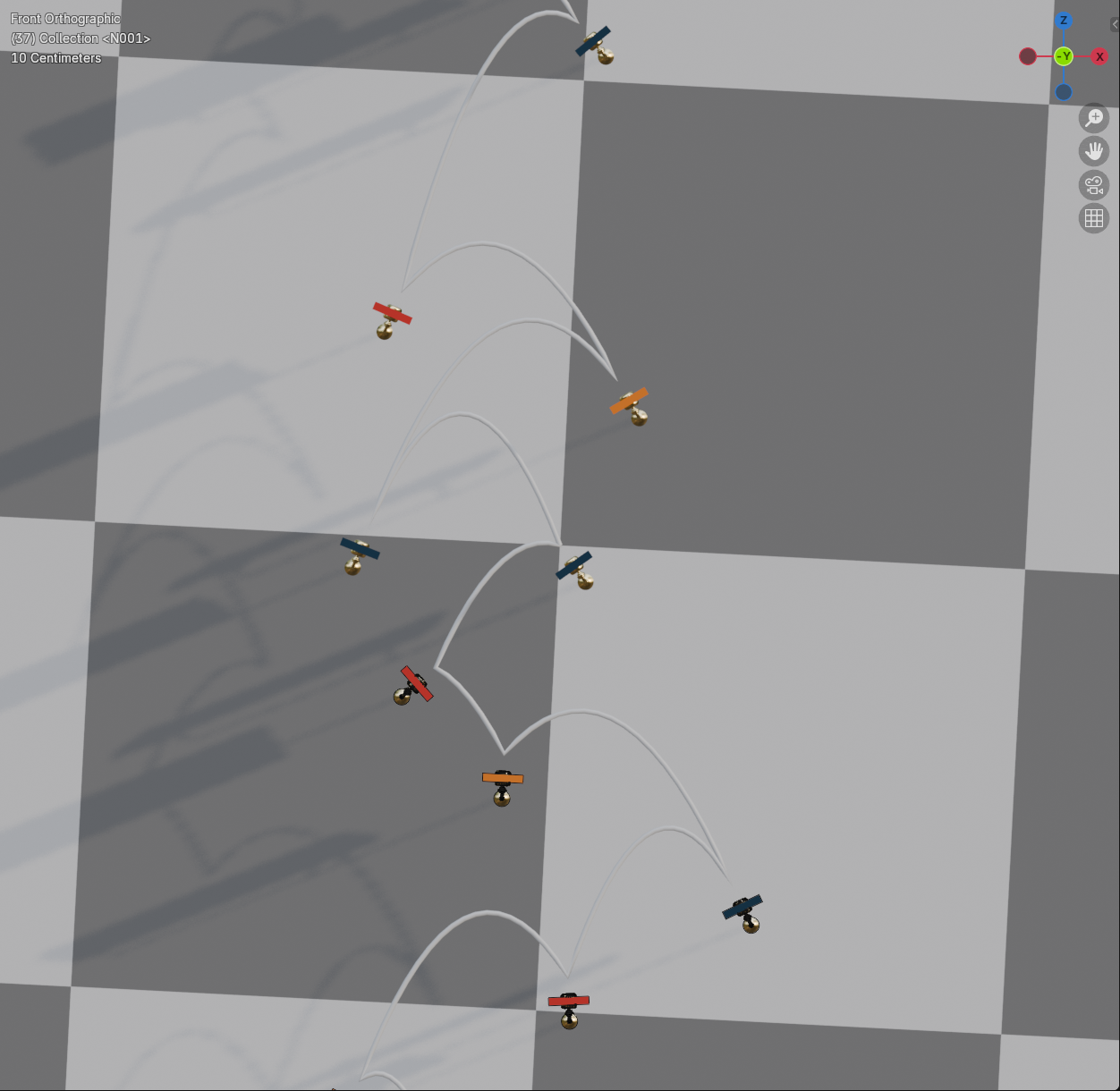
Ghosts are copies
A ghost is never part of the course. To change one, change the real key at the other end of the loop, or select the ghost and use Rotate Key, which turns its real key. If you delete ghosts by hand they come back on the next course edit.