Key Materials and palettes
Give every key a color. In Marble Studio Free this section is called Key Colors: you build a list of colors by hand and the keys take them in strike order. In Marble Studio Pro it is called Key Materials and adds palettes by strike order or by pitch, a palette generator, and keys that light up when the marble hits them. The section is folded by default.
Key Colors
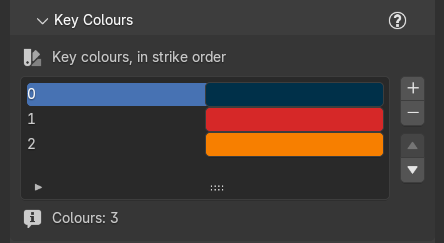
The Key Colors section in Marble Studio Free is a list of colors, headed "Key colors, in strike order". The keys take the colors in strike order: the first key wears color 1, the second color 2, and so on, round and round.
- + (Add Color Slot) adds a color slot: a neutral color in Marble Studio Free, and in Marble Studio Pro a color that matches the palette (a sensible starter color on an empty list). Click its swatch to change it.
- − (Remove Color Slot) removes the selected color.
- The up and down arrows (Move Color) move the selected color up or down the list. The list order is the strike order, so the keys follow at once.
- The line under the list counts the colors, for example "Colors: 3", or says "Colors: none yet - every key neutral".
The first Generate in a new file fills an empty list with three starter colors, in strike order: dark blue, red, and orange (#003049, #d62828, #f77f00), in both editions.
Recipe: two-color keys. Remove colors until two are left, then set one to dark blue and one to gold. The keys alternate blue, gold, blue, gold along the song.
Everything below is Pro. All keys wear one material; Marble Studio Pro sets each key's color and strike light through two small hooks inside it.
Material library Pro
Key Material is the one material every key wears. Empty means the built-in default material ("★ default system material (all keys)"), which is always ready.
To take colors and strike light, a material needs the two Marble Studio hooks (MMS_Color for color, MMS_Strike for light). The line under the field tells you where yours stands:
| The line says | Meaning | What to press |
|---|---|---|
| "★ system-ready" | Colors and strike light both work. | Nothing. |
| "colors work; no strike light" | Colors work; the strike glow has nowhere to go (common with glass). | Add Strike Glow |
| "not system-ready - see Course Check" | The hooks are missing, not wired to the Material Output, or wired to a duplicated copy of the hook group. Course Check's yellow row Key mat not ready says which. | Make System-Ready (or, for a duplicated group, Apply in Instruments or Save Part) |
- New System Material: makes a new material with both hooks already wired to a Principled starter, and sets it as the Key Material.
- Make System-Ready: adds and wires the hooks into your chosen material without clearing what is already in it.
- Add Strike Glow: for glass or non-Principled materials, adds a Mix Shader at the output so the strike light works. Optional and undoable.
In the Shader Editor, Add > Marble Studio has Base Color (MMS_Color) and Strike (MMS_Strike) if you prefer to wire the hooks yourself.
Make System-Ready refuses with "Pick a Key Material first." or "Material has no node tree to adopt."; on a glass or other non-Principled material its report notes "no Principled Emission to light -- use 'Add Strike Glow' for a glass/pro shader". Add Strike Glow reports "Added a strike glow (Mix Shader) to 'Glass'.", or refuses with "Material has no active Material Output." or "Wire your shader into the Material Output first, then Add Strike Glow."
Recipe: use your own material. Pick it in Key Material, press Make System-Ready, and check the line reads "★ system-ready".
Pitch palette Pro
Color By chooses how each key gets its color:
- By Strike Order: the palette's colors repeat in strike order (first key color 1, second color 2, ...).
- By Pitch: each key takes a color from a ramp, by its note, from the song's lowest note (left of the ramp) to its highest (right).
If the Key Material is not system-ready, a line warns that "Colors won't show until the Key Material is system-ready". The controls still work.
By Strike Order
- Scheme drop-down: the color mood for the next Generate: Auto (balanced), Complementary, Analogous, Triadic, Monochromatic, or Random.
- Generate Colors: new harmonious colors for the current slots. Locked slots are kept; the others are chosen to go with them. With no slots it says "Add color slots first (or use Per Distinct Note)."; with every slot locked, "All slots are locked -- nothing to generate."
- Per Distinct Note: sets the number of slots to the number of different notes in the song and fills them. It reports "Set 7 slots (one per distinct note) and generated.", or with no course "No generated course with pitches -- generate a course first."
- Import: loads a palette
.txtexported from Coolors; every color fills the slots in order. It reports "Imported 5 colors."; a file with no colors in it gives "No colors found in that file.", and one it cannot read "Could not read file: ...". - The palette list: each slot has a lock, a number, and a color. + adds a slot that fits the palette, − removes the selected one.
By Pitch
- Scheme drop-down and Per-Pitch: give every distinct note its own color as hard stops on the ramp.
- The ramp ("Low -> High pitch across the song:"): edit it like any Blender color ramp. The line under it says "Ramp edits apply live; new courses on Generate": changes show on the keys straight away, and a new Generate uses the ramp too. If the ramp is not there yet, the section says "Ramp initializing -- press Update from Ramp"; press it.
- Per-Pitch reports "Pitch palette set: 7 distinct notes, one color each.", or for a song with more notes than a ramp holds "Pitch palette set (40 distinct notes capped to 32 ramp stops)."; with no notes to color, "No distinct pitches to color."
- Update from Ramp: re-applies the ramp to every key now, if a change did not show.
- Import: loads a Coolors
.txtonto the ramp.
Recipe: a rainbow scale. Set Color By to By Pitch, choose Analogous, press Per-Pitch. Low notes and high notes now read as different colors.
Strike glow Pro
Strike makes keys light up when they are hit. It is worked out per key when the course is solved.
- Off (default): no strike light and no extra keyframes.
- Stay-lit: each key lights on its strike and stays lit until the loop restarts.
- Flash: each key lights at the strike and fades. With Z-Hop on, the flash holds through the dip and fades on the return; with Z-Hop off it lasts Flash Fallback (frames) (default 4).
- Extinguish: keys start lit and fade out on their strike over Extinguish Fade (frames) (default 8).
Like the Z-Hop spacings, Flash Fallback and Extinguish Fade are counted at 60 fps and kept the same length in seconds at your course's frame rate (half as many frames at 30 fps, twice as many at 120).
With Strike on, more controls appear:
- Strike Visibility (0 to 1): a dial over all strike light. Keyframe this one to fade strike light in and out across the song; the Strike mode itself cannot be keyframed.
- Strike Color: the color of the light (white by default).
- Inherit Key Color: each key flashes its own palette color instead.
Every mode is seamless across the loop. Seam Mirror ghosts flash with their keys.
Recipe: lights only in the chorus. Set Strike to Flash. Keyframe Strike Visibility at 0 before the chorus, 1 at its first note, and back to 0 after it.
Save to the library Pro
The Asset Library block at the bottom keeps materials and palettes across songs.
- Save Material: saves the Key Material to the Marble Studio library under an Asset Name. Grayed unless it is system-ready ("Pick a system-ready Key Material first.").
- Save Palette: saves the palette (colors, mode, scheme, and pitch ramp) as a named preset (Preset Name).
- Refresh Library: re-reads the library folder.
- Saved Materials: + Load Material: adds the selected material and sets it as the Key Material ("Select a library material first." with none selected).
- Saved Palettes: + Load Palette: fills the current palette or ramp from the selected preset ("Select a library palette first.").
A saved material also shows a bookmark icon beside the Key Material field.
What saving and loading can say:
The exact words
Save Material: "Saved 'Gold' to the library." An unsaved song adds "Save the file to file it under Marble Studio/Key Materials." (or "(Could not write the asset catalog file.)"). It refuses with "The open file is inside the Marble Studio library folder -- save your song elsewhere before saving library assets.", "Could not write library file: ...", or "Could not mark asset: ...".
Load Material: "Reused existing system-ready 'Gold'." when this file already has it; it refuses with "Library file is missing.", "No material found in that library file.", "'Gold.blend' was saved by Blender 5.3 - open it in 5.3; this Blender cannot read it.", "Could not append material: ...", or "Append reported success but the material is missing."
Load Palette: "Could not read preset: ..." or "Not a Marble Studio palette preset."