Keys, bounces, and on-beat strikes
Authored, not simulated
Marble Studio does not run a physics simulation. It authors the marble's flight as keyframed curves, arc by arc, so that it looks physical: real-looking gravity, real bounces off the face of each key, a spin that matches the roll. The bar is "looks right", and two rules are never bent:
- The marble never passes through a key. If an edit would make it, Course Check says so in red.
- Every strike is on its frame. The marble touches each key on the frame of that key's note.
Because it is authored, the result is the same every time you open the file, it plays at any viewport speed, and it renders without baking. Everything is ordinary Blender keyframes.
Because the course places every key, keys only turn: Blender's move (G) and scale (S) do nothing to a course key, its base, or a ghost key. The one exception is note 1, whose position places the whole course. See Rotate a key.
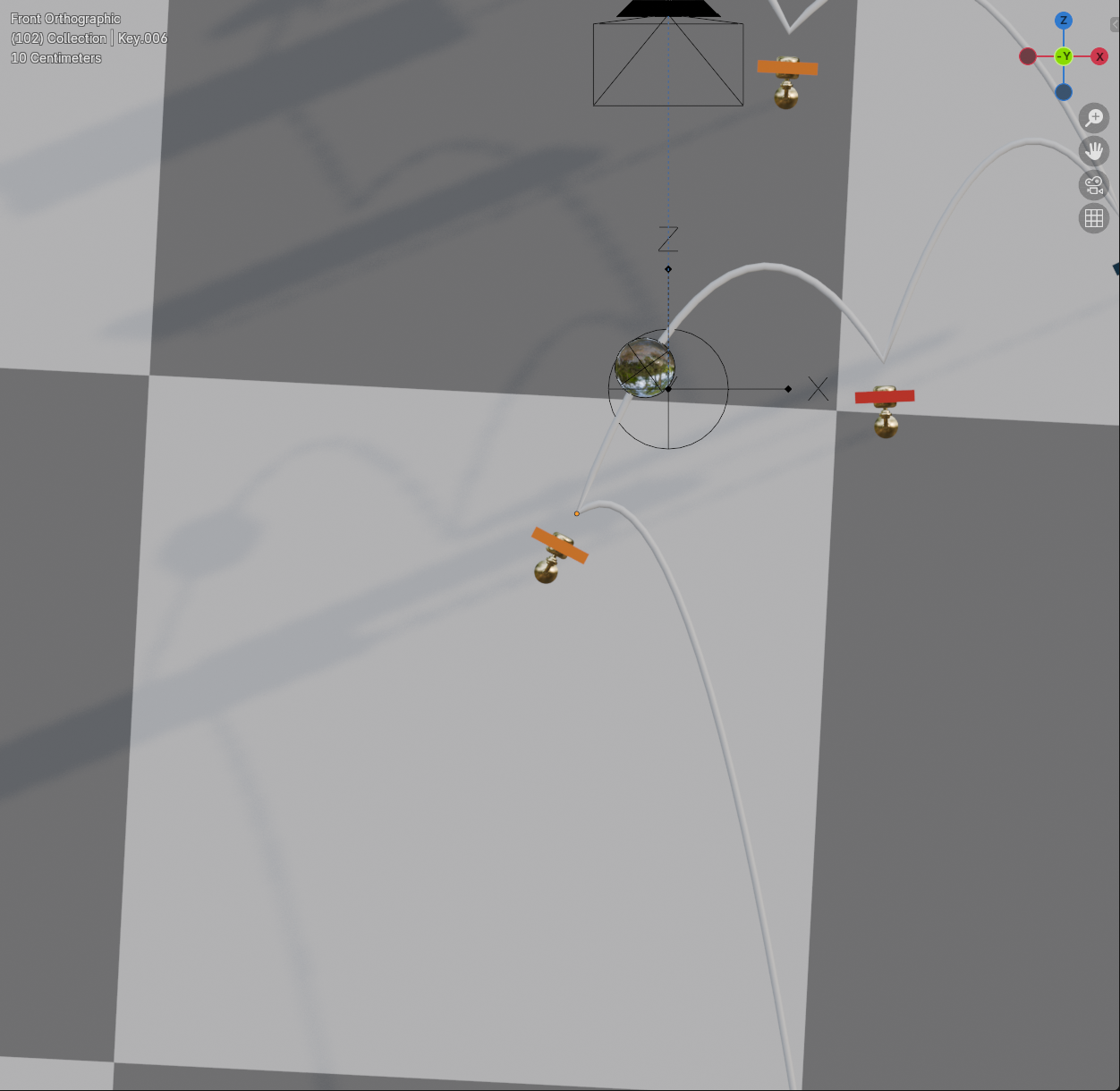
When a strike lands
Each note's time in the MIDI becomes a frame at your chosen frame rate. The key for that note is placed and angled so the marble touches it on exactly that frame (each key stores it as its Collision Frame). The MIDI markers on the timeline sit on the same frames, so you can scrub to any note.
- A note that falls between two frames is struck on the frame at or just before it. The picture can lead the sound by less than one frame, which the eye reads as "on the beat".
- Notes that sound at the same moment (a chord) are one strike. If two notes are so close that they fall on the same frame, the second strike moves one frame later. Generate says how many strikes it moved (this happens more at low frame rates such as 24 fps on fast passages).
Bounce is each key's liveliness: how much speed the marble keeps when it leaves that key. Low values give a short, dead hop; high values a long, lively one. Every key has its own Bounce, shown in the Course Editor when the key is selected.
Ripple
When you rotate a key or change its Bounce, the marble leaves that key on a different path, so the next key has to move to catch it on its beat, and the one after that, and so on. Marble Studio spreads this change out like a ripple: the biggest change is right at the key you edited, and it fades to nothing over the keys on both sides of it (the course is a loop, so "before" and "after" both wrap round).
Ripple Taper (keys) in the Course Editor sets how far the ripple reaches in each direction (24 keys by default). Smaller keeps edits local; larger lets the whole course shift. Either way, the loop stays closed.
Re-solve
Re-solving is Marble Studio recomputing the course from your current key angles and Bounce values.
- With Live Update on (the default), it happens on its own a moment after each edit.
- Re-solve Course does it on demand, for example after you have edited with Live Update off.
- Re-solve from Scratch throws away the accumulated ripple of many small edits and lays the course out from scratch using your current angles. Keys far from your edits may move. Use it when a much-edited course starts to look bunched up.
Every re-solve keeps every strike on its beat and the loop closed. See Course Editor.