Hotkeys
Every Marble Studio hotkey works in the 3D Viewport, and every one also has a button, so you never need a hotkey. On a Mac, use the Control key for these hotkeys, as in Blender's own tool shortcuts. Where a tool also answers to Cmd, its row says so.
Hotkeys
| Tool | Default hotkey | What it does | Button in |
|---|---|---|---|
| Rotate Key | Ctrl+Shift+R or Shift+Alt+R (Shift+Cmd+R also works on a Mac) | Rotate a key, or its seam ghost, around its bounce axis (like R) | Course Editor; see Rotate Key |
| Follow Marble | Ctrl+Shift+0 or Ctrl+Shift+Num 0 | Front view that follows the marble | Camera (Looping); see Front View: Follow Marble |
| Scale Bounce | Ctrl+Shift+B | Scale a key's Bounce with the mouse: drag right for more Bounce, left for less | Course Editor |
| Previous / Next MIDI Marker | Ctrl+Shift+Left / Ctrl+Shift+Right (Shift+Cmd+Left / Shift+Cmd+Right also work on a Mac) | Jump the playhead to the strike before or after this frame | Song Reference |
| Camera Director Pro | Ctrl+Shift+D | Drive the camera from the viewport and drop a point of interest | Camera (Looping) |
| Insert Track at Playhead Pro | Ctrl+T (Cmd+T also works on a Mac) | Insert a track at the playhead, in Object Mode (in Edit Mode, Blender's own Ctrl+T wins) | Tracks |
Blender's own R also turns a key; see Rotate a key. Plain R is fine for a quick turn. Use Rotate Key (Ctrl+Shift+R) to turn a seam ghost (it turns the real key behind it, which R cannot), to watch the course re-solve live as you drag, or to turn a key cleanly from any view.
Inside the drag tools (Rotate Key, Scale Bounce, Camera Director), Enter or left-click confirms and Esc or right-click cancels, following your own Blender keymap.
The Hotkeys section
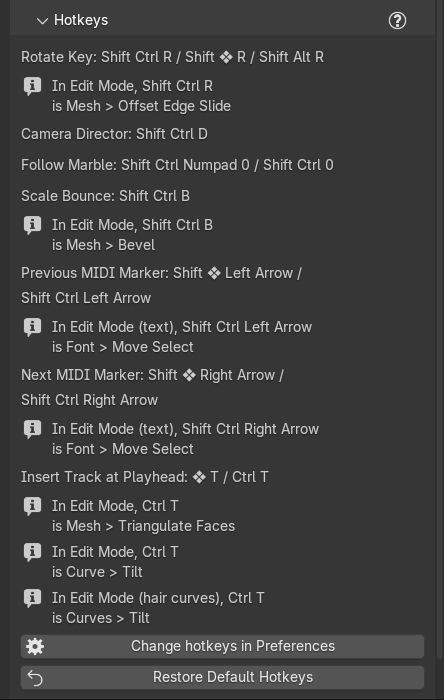
The Hotkeys section near the bottom of the tab, just above Course Check (folded by default), lists each tool with the hotkey it has in your keymap right now, so a key you changed shows as you changed it. Under it:
- Change hotkeys in Preferences (Change in Preferences where the sidebar is narrow): opens Preferences > Add-ons at Marble Studio.
- Restore Default Hotkeys: puts every Marble Studio hotkey back to the defaults above. Your other keymap changes are kept. It asks first, in a dialog titled "Restore Default Hotkeys?": "Every Marble Studio hotkey goes back to its default. This also brings back keys you removed on purpose (Rotate Key's Shift+Alt+R) and cannot be undone." Then: "Marble Studio hotkeys restored to their defaults". If Preferences cannot be opened from the button, it says "Open Edit > Preferences > Add-ons > Marble Studio (...)": open it by hand.
The buttons in the other sections also show their hotkey on a Hotkey: line beneath them.
Change a hotkey
- Edit > Preferences > Add-ons, find Marble Studio and open it (or press Change hotkeys in Preferences). The section starts "Marble Studio hotkeys (3D View). Click a key to record a new one; the tick turns it off."
- Each tool has a box. Click its key field (it reads the key, or "Set a hotkey", or "(no key) - click to set one"), then press the new combination; while it waits it reads "Press a key... (Esc keeps the old one)", and the status bar says "Press the new key combination - Esc or right-click keeps the old one". Esc, right-click, or a click elsewhere keeps the old one.
- The tick beside it turns that hotkey off. A tool with no hotkey says "no hotkey - use the button, or set one here".
Recipe: move Scale Bounce off Ctrl+Shift+B. Open the preferences as above, click the key field in the Scale Bounce box, and press your new combination. The Hotkey: line under the Scale Bounce button updates.
Conflicts
If another tool already uses one of these keys where Marble Studio's tools work, the Hotkeys section shows it under the tool, in two short lines with a warning icon: the key and the other tool, then where it applies in brackets. Preferences shows the same conflict in red in the tool's box, as one line, for example "Shift Ctrl B is also Window > ... (in the 3D View this add-on's key takes it)". Change one of the two hotkeys to fix it. Course Check does not list hotkey conflicts.
Some overlaps are only information: the key does something else in another mode, and the other mode wins there. For example, in Edit Mode Ctrl+Shift+R is Blender's Mesh > Offset Edge Slide. The Hotkeys section shows these as two short gray lines under the tool ("In Edit Mode, Shift Ctrl R" / "is Mesh > Offset Edge Slide"); they are not counted as conflicts. Preferences says the same in one line, "In Edit Mode, Shift Ctrl R is Mesh > Offset Edge Slide (Object Mode: this add-on)". A key you gave another tool that does the same thing (Jump to Marker on a marker key, say) changes nothing: Preferences lists it as "... (same action; in the 3D View this add-on's key takes it)", and the Hotkeys section does not show it. A conflict's reason in Preferences can be "Marble Studio's own; Rotate Key is tried first", "only in Edit Mode (hair curves); in Object Mode this add-on's key works", or "both are in the 3D View keymap; the first match wins".