Install and activate
Marble Studio comes as one .zip file. The same file installs on Blender 4.2 and newer (tested on 4.2, 4.5, and
5.2). Marble Studio Free and Marble Studio Pro are separate zips, installed the same way. Both come from
marblestudio.pro; from November 20, 2026, Marble Studio Pro is also on Superhive.
Install the extension
- Open Blender and choose Edit > Preferences.
- In Get Extensions (or Add-ons), open the drop-down menu at the top right and choose Install from Disk....
- Pick the Marble Studio
.zipand confirm. - Make sure the add-on is ticked on in the Add-ons list. Marble Studio Pro is listed as Marble Studio Pro; Marble Studio Free appears there as Marble Studio Pro (Free) until version 1.0.1.
- Restart Blender completely before you start work, so every part of the add-on (hotkeys included) loads fresh.
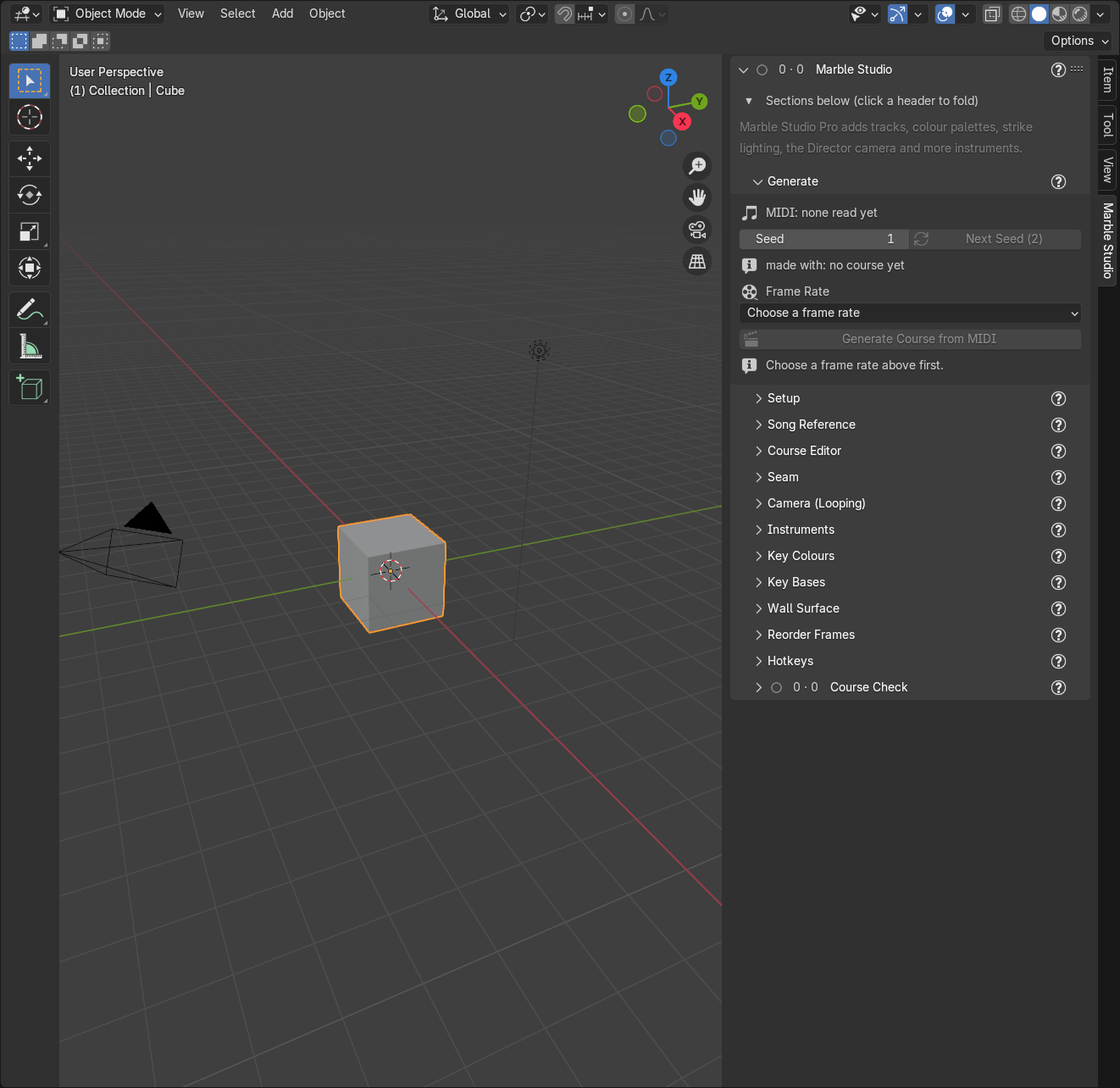
To find the add-on: in the 3D Viewport press N to open the sidebar, then click the Marble Studio tab. The panel is a stack of sections in the order you work (Generate, Setup, Song Reference, Course Editor, Seam, Camera, and so on), with Course Check last. On a fresh install Generate is open and the others are folded: click a section's header to open or fold it.
In Marble Studio Free, the top of the tab carries one quiet gray line: "Marble Studio Pro adds tracks, color palettes, strike lighting and the Camera Director."
Blender versions
On a Blender older than 4.2 the add-on does not turn on, and says why. Install Blender 4.2 or newer.
Seats
There is no activation step: no license key, no account, and no online check. Marble Studio Free needs nothing at all. Marble Studio Pro is licensed per seat: install it on each computer your license covers, and you are ready to work.
Upgrade from free to Pro
Install the Pro .zip the same way, over Marble Studio Free, and restart Blender. Both editions share one add-on
entry, so Pro replaces Marble Studio Free in place: you get one Marble Studio Pro entry and one Marble Studio tab,
not two side by side. A hotkey you changed in Marble Studio Free is still
changed after Pro goes over it.
Songs move between editions:
- An animation made in Marble Studio Free opens in Pro as a normal course.
- An animation made in Pro opens, plays, and renders in Marble Studio Free exactly as saved. Course Check shows one yellow row: "This file was made with Marble Studio Pro. It plays and renders here as saved; editing it here will drop its Pro parts — close without saving to keep them."
Update
- Install the new
.zipthe same way (Install from Disk...). It replaces the old version. - Restart Blender completely.
- Check the version number in Preferences > Add-ons, on the Marble Studio row. The row also shows where the add-on lives: "View3D > N Panel > Marble Studio".
Your songs keep working: a course made with an older version opens and plays as it was saved. In Marble Studio Pro, your saved materials, palettes, parts, and track geometries live in the Marble Studio library folder, outside the add-on, so an update never touches them. The starter materials come with the add-on and update with it; anything you save is yours and is never touched. The library folder is:
- Windows:
%LOCALAPPDATA%\Marble Studio\Library - macOS:
~/Library/Application Support/Marble Studio/Library - Linux:
~/.local/share/Marble Studio/Library(orMarble Studio/Libraryunder$XDG_DATA_HOMEwhen that is set)
Uninstall
- Edit > Preferences > Add-ons, find the Marble Studio row, open it, and choose Uninstall (or Remove on newer Blender versions).
- Your
.blendfiles keep everything already generated: the keys, marble, and camera are normal Blender objects with keyframes and play without the add-on. Editing tools (re-solving, the seam mirror, and so on) need the add-on installed. - The library folder (Pro) is left in place. Delete it by hand if you no longer want your saved items.