Tracks and Track Geometry Pro
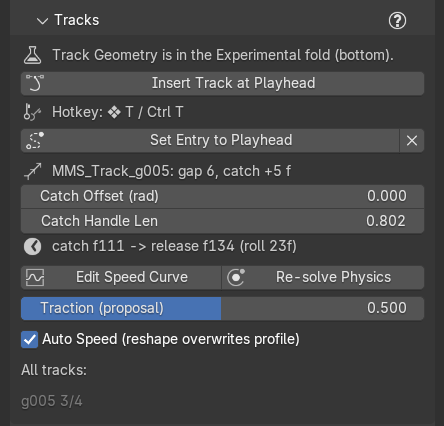
Between two keys, the marble can land on a track instead of flying: it catches the rail, rolls along it, and leaves at the end to strike the next key on its beat. You draw the track's shape like any curve; Marble Studio works out the roll and keeps every strike on time.
The Tracks section inserts and times tracks. How a track looks (rails, pipe, tube, half pipe) is chosen in the Experimental section at the bottom of the tab (the Tracks section says so: "Track Geometry is in the Experimental fold (bottom)."): see Track Geometry.
Insert a track
- Scrub the playhead into the gap between two notes where you want the marble to catch a track.
- Press Ctrl+T (Cmd+T also works on a Mac) with the mouse over the 3D Viewport in Object Mode, or click Insert Track at Playhead. The Hotkey: line under the button shows your binding. In Edit Mode, Blender's own Ctrl+T (Triangulate, Tilt) wins.
The marble catches the new track on the current frame and rolls a plain default shape. The keys after it re-flow like after a key edit, and the loop stays closed. The report names the gap and frames, for example "Track inserted in gap 12 (catch at frame 540, notes 532 -> 590). Tab into it to shape; Set Entry re-times the catch." It can add how the track was dressed: "Rails: 'Track_Switch_Master_v1'.", "Inherited from master track 'MMS_Track_g004'.", "No master track in this file - using the node group's own defaults.", or "No 'Track_Switch_Master_v1' node group in this file - showing a wire (append a rails node group into this file, or Generate in a new file: the built-in pieces bring their own)." In the closing gap (between the last note and the loop note) a track is also checked against the marble's path; if that could not run, the report says "The rails were not measured against the marble (...)."
- One track per gap. A second insert in the same gap is refused: "Gap 12 already has a track ('MMS_Track_g011') ... Edit it, or delete it first."
- The section is grayed with "(Generate a course first)" until a course exists.
Recipe: a rolling run into the chorus. Scrub to just after the last note before the chorus and press Ctrl+T. Press Tab and drag the curve's points into a long ramp down. Leave Edit Mode: the marble rolls the ramp and still lands the chorus's first note on time.
When an insert is refused
A refused insert changes nothing. The report starts "No track here: ..." and says why. The same reason, with the frame you tried, stays on the line under the button until the next insert that works or until you reopen the file. What to do, by reason:
- Read the line under the button: it keeps the last reason until an insert works.
-
Move the playhead further into the gap. A track needs 13 frames of the gap: 3 frames of flight before the catch, 6 of roll, and 4 of flight after.
The exact words
"No track here: too close after the note strike (needs >= 3 air frames before the catch).", "... too close to the next strike (needs >= 10 frames after the catch).", and in the closing gap "... too close after the last note's strike (needs >= 3 air frames before the catch)." or "... too close to the loop note (needs >= 10 frames after the catch)."
-
Put the playhead between two notes. It is before the first strike, on a strike, or past the loop note.
The exact words
"No track here: the playhead is before the first note's strike.", "... the playhead sits exactly on a strike frame - move it into a gap.", or "... the playhead is at/after the loop note - move it into the seam gap (between the last note and the loop note)."
-
Land the nudge first. The course is not on its Loop Nudge landing: press Re-solve Course, or undo the edit that moved it.
The exact words
"No track here: the Loop Nudge has not landed yet (Live Update is off); press Re-solve Course first." or "No track here: the course sits at +8, off its +12 landing, after an edit; undo the edit or turn the key back (or drag the Loop Nudge), then insert the track."
-
Move the playhead later, or shape the last key. In the closing gap, Ctrl+T checks the new rails against the marble's real path, frame by frame, and names the frame where they would touch. It also says where a clear catch is, if it found one.
The exact words
"No track here: the marble comes down through this spot on its way onto the last key (frame 1250, 12 mm into the rails).", "... the marble bounces off the last key through the rail start at frame 1251 (8 mm).", or "... the marble sinks into the rails at frame 1262 on the ride (5 mm)." Each one ends with what to try: "; the first catch clear of the rails is frame 1256.", "; no catch in this gap is clear of the rails, so shape the last key, or try a different Loop Nudge.", "; no catch up to frame 1290 is clear of the rails, so move the playhead later and try again.", or "; later catches could not be measured (...), so move the playhead later and try again."
-
Show the collection. The course's collection is switched off in a way that stops the check: the monitor icon (Disable in Viewports) or the checkbox (Exclude from View Layer) in the Outliner. Turn it back on and press Ctrl+T again. The eye icon alone does not stop it. If a parent collection is the one switched off, it names the parent.
The exact words
"Cannot check the track against the marble: the 'Generated Course' collection is disabled in viewports (the monitor icon in the Outliner, Disable in Viewports); turn it back on and press Ctrl+T again.", "Cannot check the track against the marble: the 'Generated Course' collection is excluded from the view layer (its checkbox in the Outliner, Exclude from View Layer, is unticked); tick it and press Ctrl+T again.", "Cannot check the track against the marble: the course collection is hidden; show it and press Ctrl+T again.", or "Cannot check the track against the marble (...); press Ctrl+T again." The reason in brackets (and in "later catches could not be measured (...)") can be "the rails could not be evaluated (...)", "the rails are not in the scene's evaluated view (hidden or excluded)", "the rails did not re-evaluate", "the marble's path was not found", or "inside the live handler".
-
Nudge less, or reshape the last key. With a track there the loop would not close. If you turned note 1 yourself, it keeps your angle, so turning it again is one more way out.
The exact words
"No track here: with a track in this gap the loop cannot close at +12 (note 1 would need Bounce 1.42); try a smaller Loop Nudge or reshape the last key." or, with a note 1 you turned, "No track here: with a track in this gap the loop cannot close at +12 with note 1 as you set it; try a smaller Loop Nudge, reshape the last key, or turn note 1."
-
Edit or delete the track already there. The gap has a track (one per gap).
The exact words
"Gap 12 already has a track ('MMS_Track_g011') - one per gap in v1. Edit it, or delete it first." The line under the button keeps "Insert refused at frame 540: gap 12 already claimed by 'MMS_Track_g011' (maybe shifted away) - edit or delete it first".
Edit a track
Select a track (they are named MMS_Track_g###) to see its controls:
- "MMS_Track_g011: gap 12, catch +8 f": which gap it fills, and how many frames after the note the marble catches it.
- Set Entry to Playhead (Set Track Entry to Playhead in its tooltip): moves the catch to the frame under the playhead ("Track catch set to frame 548."). The release still follows from the track's shape and speed. Outside the gap's room it clamps: "Playhead outside gap 12's valid range - entry clamped to frame 535."
- X (beside it): Remove Track. The gap goes back to a plain bounce ("Track removed - gap 12 is a bounce arc again."). Deleting the track object with X does the same.
- Catch Offset (rad): turns the direction the track picks the marble up in, relative to the way it arrives.
- Catch Handle Len: the length of the curve handle at the catch point; longer makes the start of the track straighter.
- "catch f540 -> release f566 (roll 26f)": the frames the marble rolls on the track.
Shape the track itself in Edit Mode (Tab): move points, change handles. With Live Update on, the course re-flows when you leave Edit Mode.
Speed curve
How fast the marble rolls along the track is a curve of speed over time that you can edit.
- Edit Speed Curve shows the track's speed in the Graph Editor, on the song's own frames (catch to release), so the playhead lines up with the marble. Up is meters per second. It reports "Speed curve isolated at SCENE time (keys sit on the track's real frames; the playhead lines up). Roll: frames 540 -> 566 (scene time)." A Graph Editor must be open somewhere in the window; if none is, a popup titled Speed curve needs a Graph Editor says "No Graph Editor is open - switch any area to Graph Editor, then click Edit Speed Curve again." (the status bar: "No Graph Editor open - switch an area to Graph Editor, then click again.").
- Re-propose Speed proposes a believable speed from the track's current shape and writes it as ordinary keys. If the track already has speed keys you set, it asks first: "Replace your 6 speed keys on MMS_Track_g011 with the physics proposal? Ctrl+Z brings them back." Click Replace to go ahead. It is a starting point: edit the keys afterwards as you like. It reports "Proposed 14 speed keys from the current shape - edit them in the Graph Editor (your edits win; Ctrl+Z restores the previous profile)." If the proposal runs past the gap, the report adds "Proposal overruns the gap: release CLAMPED (see flag)."
- Traction (proposal) (0 to 1): grip for the speed proposal, 0 = ice, 1 = grippy. A new track starts at 0, so it rolls the flight it replaced. Moving the slider re-proposes the speed right away (tooltip: "Grip for the Re-propose Speed proposal (0 = ice, 1 = grippy; 0.5 = the measured atlas friction). A new track starts at 0: it rolls the flight it replaced.").
- Auto Speed (reshape overwrites profile): while on (the default for a new track), reshaping the curve replaces the speed profile with a fresh proposal. Turn it off to keep a speed curve you shaped by hand (tooltip: "Auto Speed - while ON, RESHAPING the curve overwrites the speed profile with a fresh traction-aware physics proposal. OFF keeps your hand-authored speed untouched.").
When a re-solve keeps speed keys you set, Course Check names them in a plain-fact row, Speed keys kept, for example "The track's shape changed, but your 6 speed keys on MMS_Track_g011 were kept. Press Re-propose Speed to replace them." When an edit changes the speed into a track, the row says so too, for example "The speed into MMS_Track_g011 changed, but its speed keys were kept (you edited them). Press Re-propose Speed to replace them.", or, when re-proposed keys would stop the loop closing, "... so they were kept. Try a Loop Nudge; Ctrl+Z takes the edit back."
Recipe: a track that slows into the next note. Click Edit Speed Curve, untick Auto Speed, and in the Graph Editor drag the last key down. The marble eases off before it leaves the track.
All tracks
Under the controls, All tracks: lists every track in the course by gap with its brace and ring counts (for
example g011 6/12), three to a row, so you can compare them without clicking each one. Long courses show the
first 24 and an "... and N more" line.
Anything about a track that needs attention is a row in Course Check, under Tracks (for example Track flags, Track geometry, Bottom rail stale); a marble that clips a key is in the Keys to fix row under Course. Beside the selected track's own controls, a warning icon marks a problem that Course Check lists in full.
Track Geometry
Track Geometry is in the Experimental section at the bottom of the tab, headed "Track Geometry (the pipe kit)": "Experimental: works today, may change or be removed in a later version; files that use it keep working." With no track selected it says "Select a track to choose its geometry." Select a track and the section shows:
- Geometry: the node group the track wears right now ("Geometry: none (no geometry group)" when it wears none), and, if it wears a saved look, Track Geometry: its name (with "(edited)" if you changed a dial since).
- Track Geometry...: a menu of looks, grouped under Rails, Pipe, Tube, and Half Pipe. "(default)" marks the look a new track gets. "(add to this file)" adds a look from the add-on's kit first. Your saved looks are listed under their family. Hovering an entry says what it does: "Dress this track with 'Rails'", "Add the Pipe from the add-on's kit and dress this track with it", or "Apply the saved track geometry 'Copper rails'". A file with none reads "(no Marble Studio geometry in this file)".
- A file whose Pipe, Tube, or Half Pipe came from an older Marble Studio shows a yellow Course Check row, Old track
geometry, with an Update button beside Go To: it brings this version's geometry onto every track that wears
it, every dial kept. See Tracks rows.
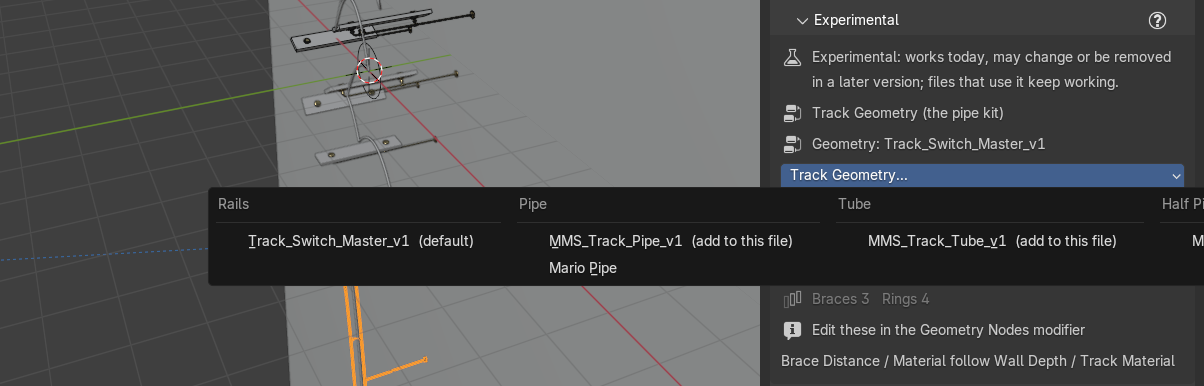
- Other node group...: dress the track with any geometry node group in the file. Marble Studio then drives nothing on it: every setting is yours, in the Geometry Nodes modifier ("Dress this track with 'MyGroup' (unsupported - Marble Studio drives nothing on it)"; "(no geometry node groups in this file)" when there are none).
- Bottom Rail (rails only): adds a third rail along the bottom of the track's rings. Your rails group is not changed; the track wears a twin of it (shown in its node tree as "Your Rails group, untouched"). The report says "Bottom Rail added on MMS_Track_g011." and can add a note: "the bottom rail was refreshed to match your Rails group", "this file's MMS_Curve_Prep_v1 differs from the add-on's; the bottom rail uses the add-on's (MMS_Curve_Prep_v1.001)", "could not tidy the conditioning copy: ...", or "could not retire the old bottom rail: ...".
- Braces / Rings counts, read from the modifier. A count the track is too short for shows as "held at the minimum 2: braces 1 -> 2". Edit them in the Geometry Nodes modifier ("Edit these in the Geometry Nodes modifier").
- For rails, "Brace Distance / Material follow Wall Depth / Track Material": the braces reach the wall at Wall Depth, and the material comes from Track Materials.
What the lines under the counts mean:
- "Brace Distance / Material were set once here, not re-driven when Wall Depth / Track Material change." This track's braces and material were set when its look was attached and do not follow later changes. Adjust them in the Geometry Nodes modifier if you change Wall Depth or Track Material.
- "No Rails group in this file, so Brace Distance / Material are still driven here." (or "No Rails group in this file, so Brace Distance / Material were set once here, not re-driven.") followed by "Pick a geometry group to make its sockets yours." An older track with no rails group in the file. Pick a look from Track Geometry....
- "Marble Studio drives nothing on this track. Every socket is yours - edit them in the Geometry Nodes modifier." The track wears a group chosen with Other node group....
- "No geometry group on this track." Pick a look from Track Geometry....
Notes you may see: a tube track that moves toward or away from the wall says how far (its braces assume a flat track); a half pipe that twists says how much of it overhangs ("Overhang: 0.40 m of this track...").
What the status bar can say when you pick a look:
- it went on, with what it carried, for example "Track geometry: Track_Switch_Master_v1. added a Geometry Nodes modifier; restored 4 of your saved values", or "copied the look from 'MMS_Track_g004'", "your earlier values for this group were dropped (only the last 8 groups per track are kept) - starting from its defaults", "no saved values for it; 3 socket(s) kept a value from the previous group (they share socket slots) - check them in the modifier panel", "using the group's own defaults (no master for it in this file)", "2 saved value(s) no longer exist in that group"; for a group chosen with Other node group..., "Marble Studio drives nothing on it - every socket is yours."; if the track was the one new tracks copy their look from, "This was the track new Insert Track copied its look from; new tracks will use the group's own defaults until you swap it back or build another Rails."
- it could not: "'Copper rails' is no longer in the library - nothing changed", "Could not apply 'Copper rails': ... - undo to go back" (the reason can be "this file has no Pipe geometry group" or "its bottom rail cannot go on this track: the bottom rail goes on the Rails only"), "Could not add 'Pipe': the add-on's track geometry kit is missing from this install (reinstall the add-on)" (or "the track geometry kit file has gone: ...", "could not read the track geometry kit: ...", "'Pipe' is not in the track geometry kit"), "No geometry node groups in this file - nothing to attach", "'MyGroup' is no longer in this file - nothing changed", "'MyGroup' is not a geometry node group" (or "'MyGroup' is not a geometry node group in this file"), "Could not attach 'MyGroup': ... - undo to go back";
- Bottom Rail: "Bottom Rail: ... - nothing changed" or "Bottom Rail: ... - undo to go back". The reason can be "this track wears no Rails group", "the bottom rail goes on the Rails only", "'Track_Switch_Master_v1' is an older version of the Rails group the bottom rail cannot follow", "'Track_Switch_Master_v1' has no Adjust First Ring dial", "could not read the Rails group", "could not build the bottom rail: ...", "this track wears no geometry group", or "this bottom rail has lost the Rails group it wraps".
Presets and library
Save a look you have dialed in, and reuse it on other tracks and other songs.
- Save as New Geometry (Save as New Track Geometry in its tooltip): saves the track's dials and material under a name, filed under its family ("Saved 'Copper rails' under Rails: 12 dial(s), material 'Copper'"). A material that is not in your library is named in the dialog: "Saving with material 'Copper' - which is NOT in your Marble Studio library, so this geometry will only find it in files that already contain 'Copper'. Save it with Track Material > Save to make it portable." It refuses with "Give the track geometry a name", "This track is not wearing a Marble Studio geometry", "'Copper rails' already exists under Rails - use Update Copper rails instead", "'Track_Switch_Master_v1' is the name of a geometry group - choose another", or "Twist is not a finite number - set a real value before saving". The dialog says what material it saves with, for example "Saving with no material (it will use the scene Track Material)".
- Update name: overwrites the saved look with this track's dials and re-applies it to every track in the scene that wears it. A dialog first says "3 track(s) use 'Copper rails'.", warns if any of them were edited ("2 of them have unsaved edits that will be overwritten.") and says which material it saves with. The report: "Updated 'Copper rails' to revision 3 with material 'Copper', and re-applied it to 3 track(s). Undo restores the tracks; the saved copy keeps the new values." Click OK to go ahead.
- Rename Track Geometry (pencil): a dialog asks for the New name. It refuses "That is already its name", "'Copper' already exists under Rails", or "'Copper rails' is not in the library". Every track wearing the look follows ("Renamed 'Copper rails' to 'Copper'; 3 track(s) followed").
- Delete Track Geometry (bin): asks you to confirm, then removes the saved look from the library. Tracks wearing it keep exactly their look, now labeled (custom): "Deleted 'Copper rails'. 3 track(s) keep their look as (custom)."
- Apply Library Version: shown when the library holds a newer version of the look than this track wears ("The library has a newer version of this geometry."). It is never applied automatically, so a song always opens looking as you saved it. If the look has left the library it says "That track geometry is no longer in the library". The report says where the look went, for example "moved to Track_Switch_Master_v1.001 (your previous values are remembered) - now at revision 3", "applied on Track_Switch_Master_v1, which is not the group it was saved from - now at revision 3", "2 dial(s) this group does not have: Twist, Bevel - now at revision 3", or "1 dial(s) whose socket type has changed: Radius - now at revision 3". When the family holds more than one group it says which it took: "... moved to Track_Switch_Master_v1.001 (your previous values are remembered) - this file has 2 geometries in that family and it landed on the first ...".
Saving or deleting can also fail: "That preset holds a value that is not a real number (...).", "Could not write preset: ...", "Could not delete preset: ...", or "'Copper rails' is not in the library." On success the library says "Saved track geometry 'Copper rails'." or "Deleted track geometry 'Copper rails'."
"Braces and rings stay with the track, not the geometry." A saved look never carries brace or ring counts, because they follow each track's length.
Recipe: one look for every track. Dial in one track's geometry and Save as New Geometry as "Copper rails". Then select each other track and pick Copper rails from Track Geometry....